Step: 1
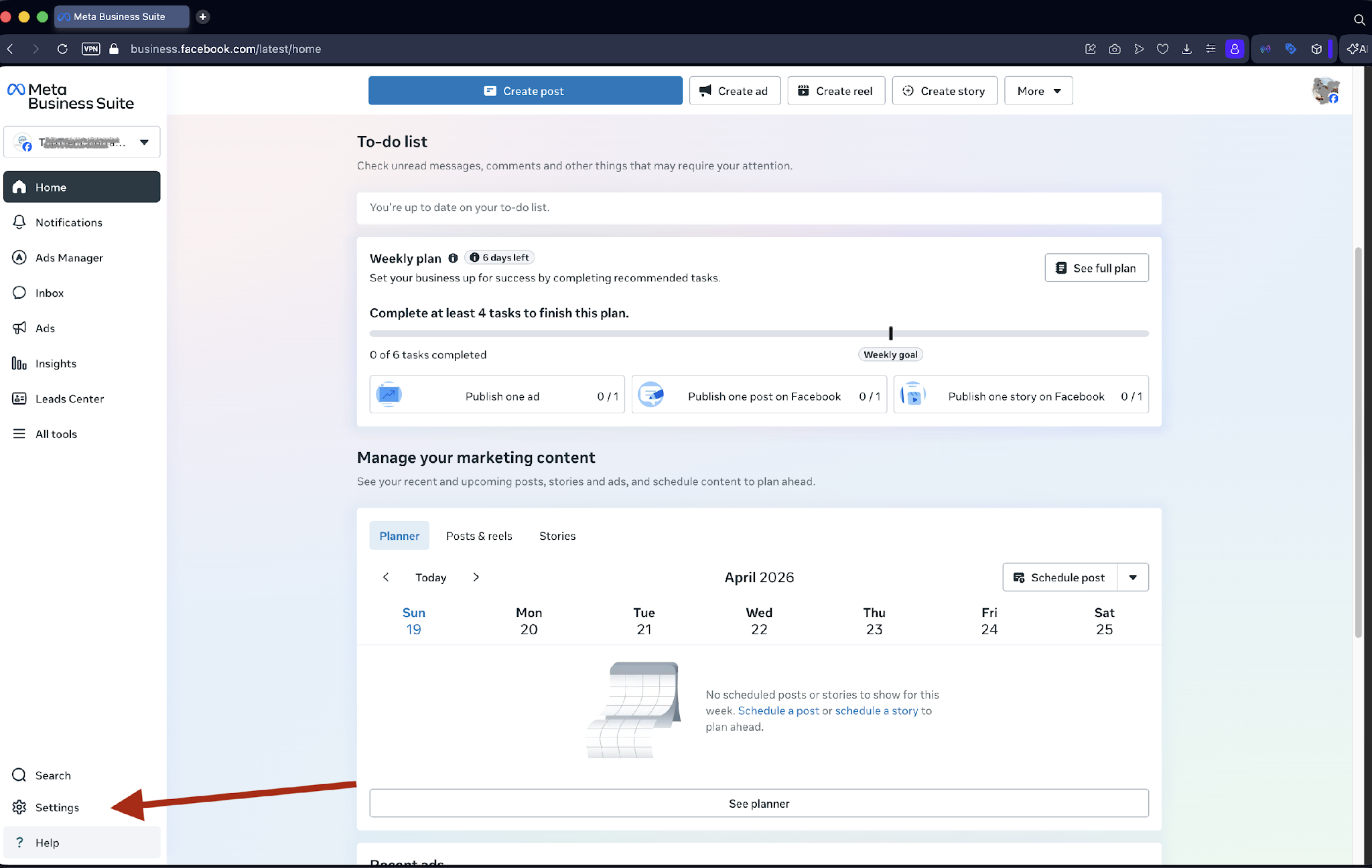
- Sign in to your Meta Business Manager at business.facebook.com
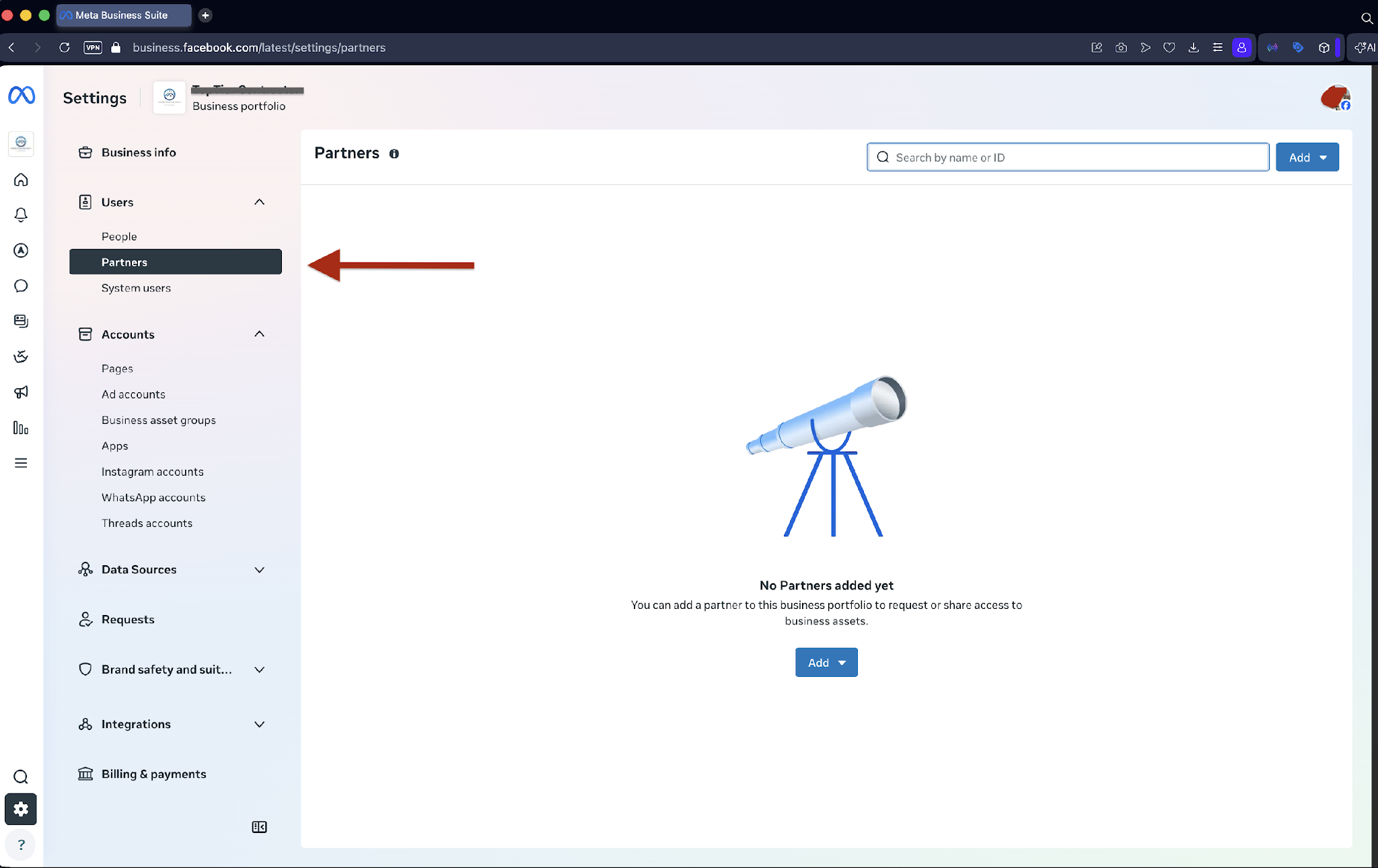
- Click “Settings” in the left sidebar, then go to Users > Partners
Step: 2
- In the Partners Section:
- Click the blue “Add” button
- Select “Give a partner access to your assets“
- Enter the StatBid Business Manager ID 357378441449902.
- Review the partner name that appears and confirm it shows StatBid
- Click “Next” to proceed.
Step: 3
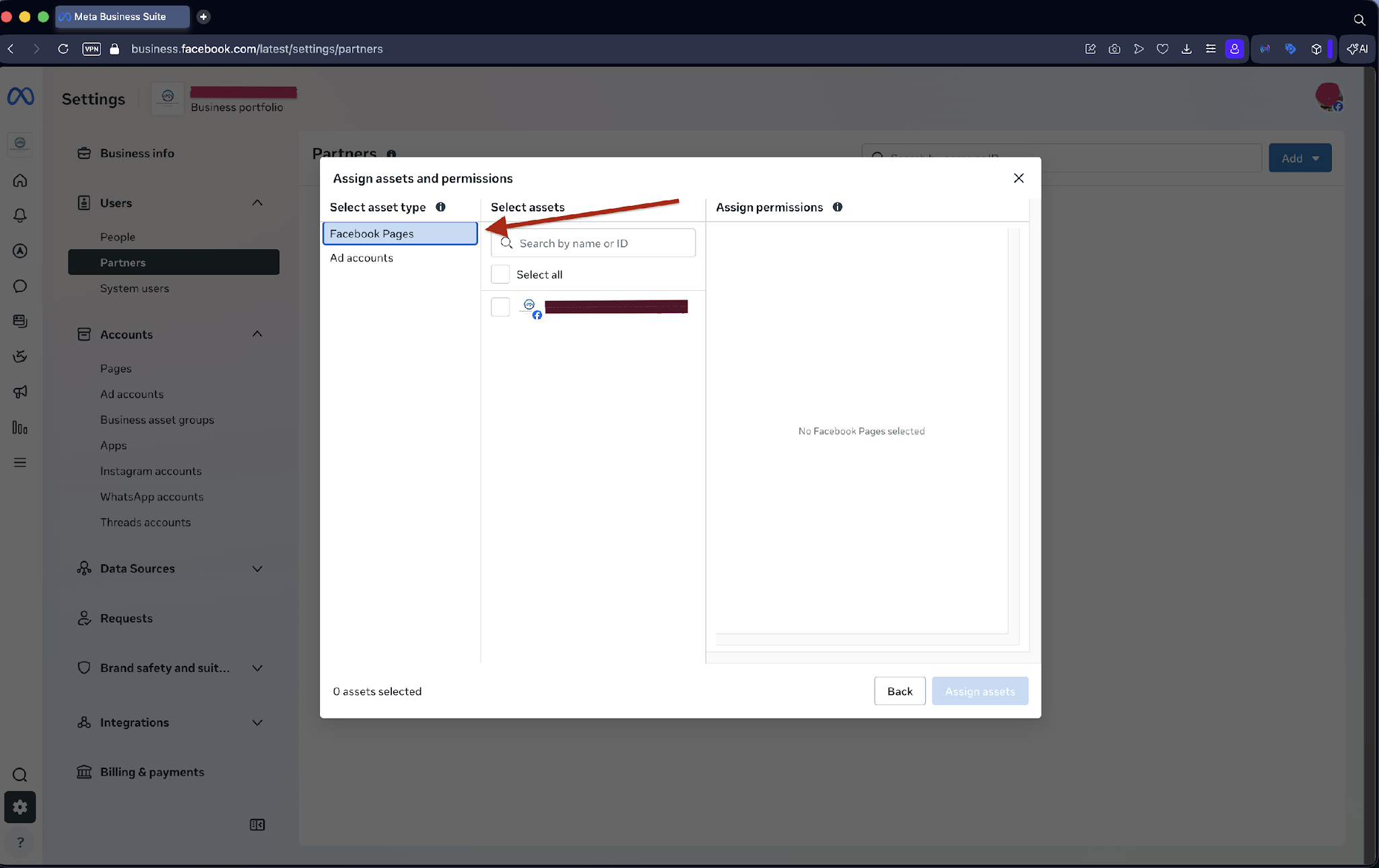
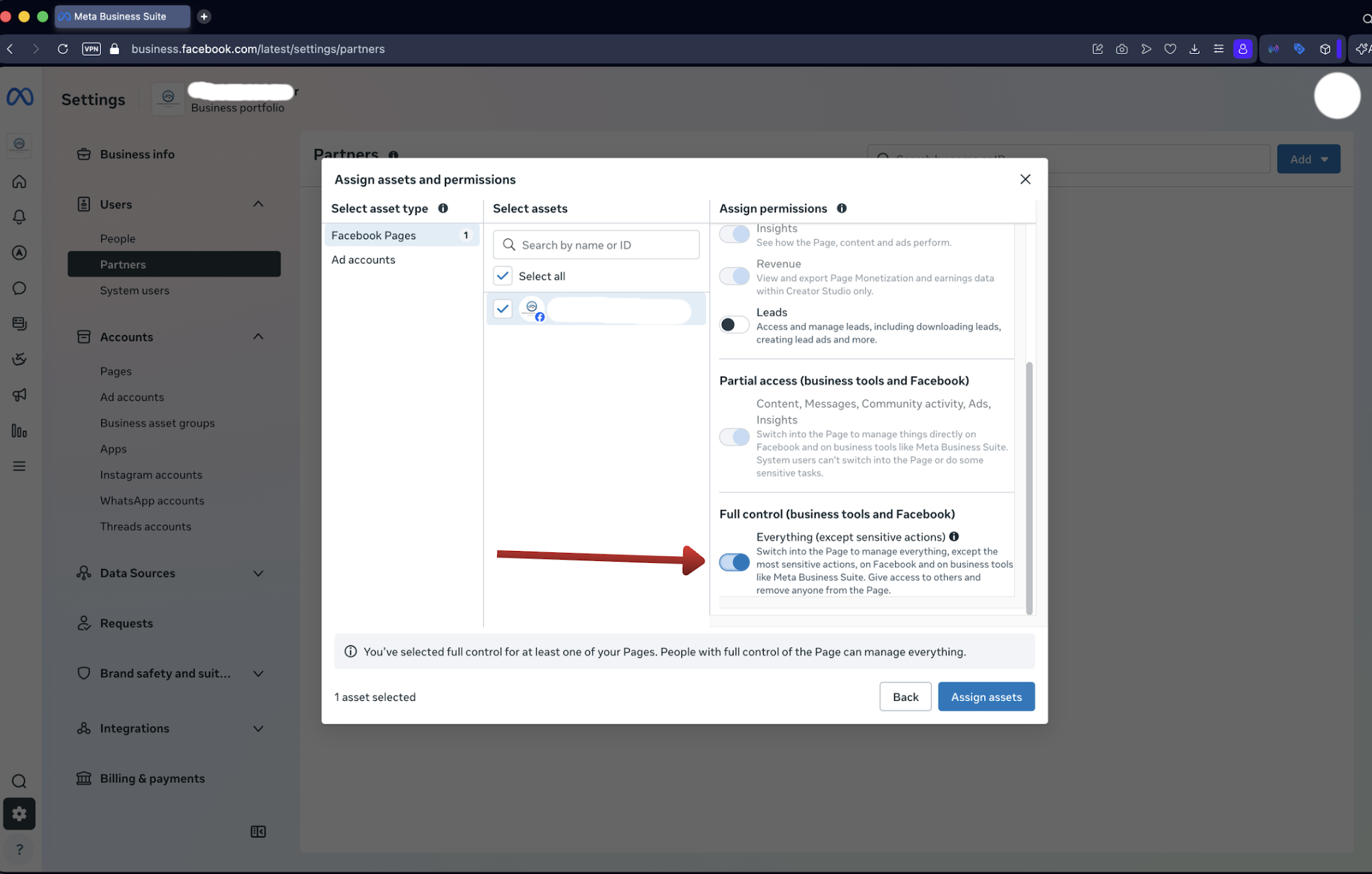
Once StatBid is added as a partner, you can share individual assets. Start with your Facebook Page. Ads run from your page, so StatBid needs access to your page to publish and manage your ads.
- Click on the Facebook page associated with your brand
- Set Permission level to “Full Control (business tools and Facebook)”
Step: 4
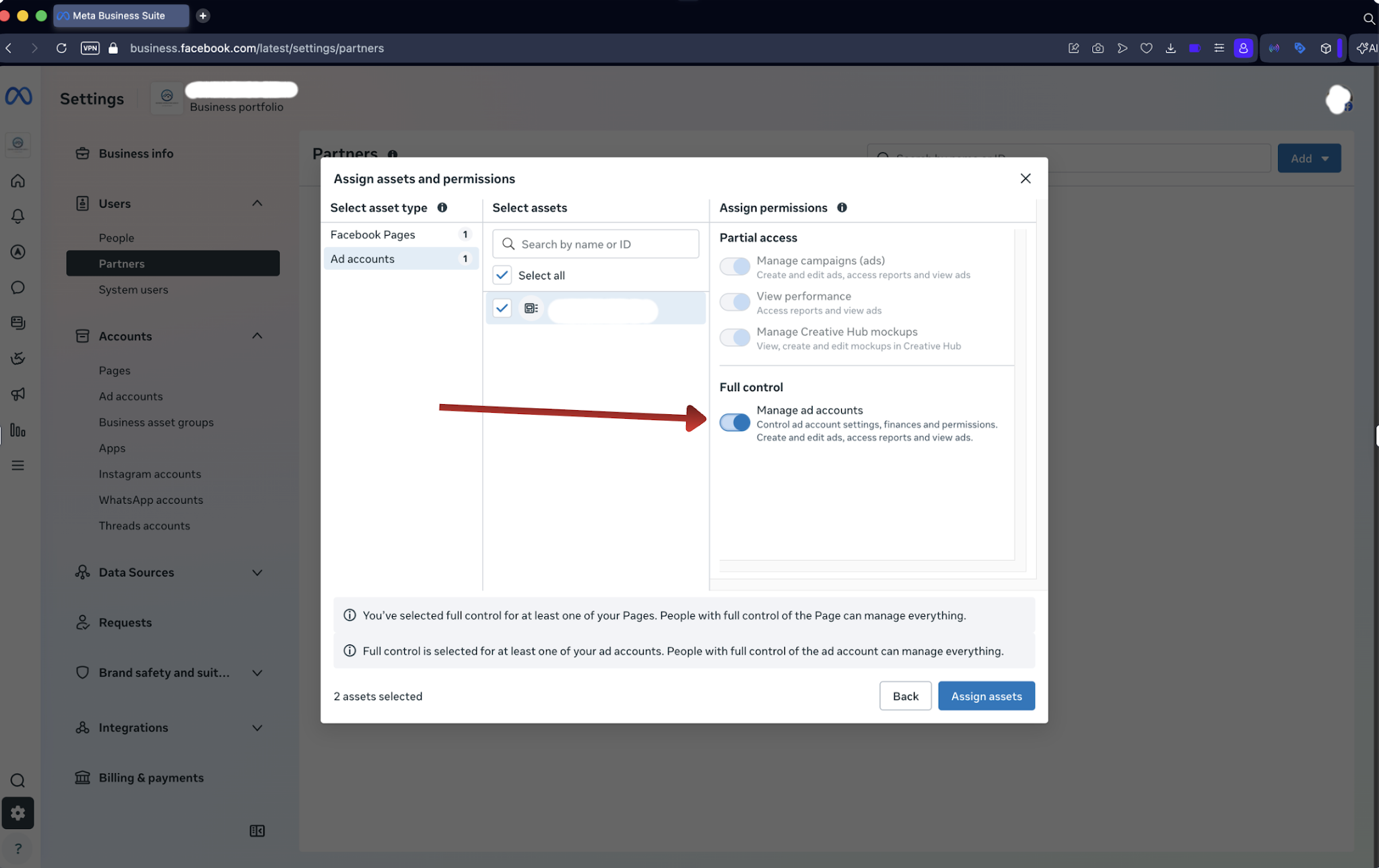
- On the same page, click on “Ad Accounts” in the left sidebar
- Select the ad account you want StatBid to manage
- Toggle on “Full Control“
- Click the blue “Assign assets” button to complete the process
Step: 5
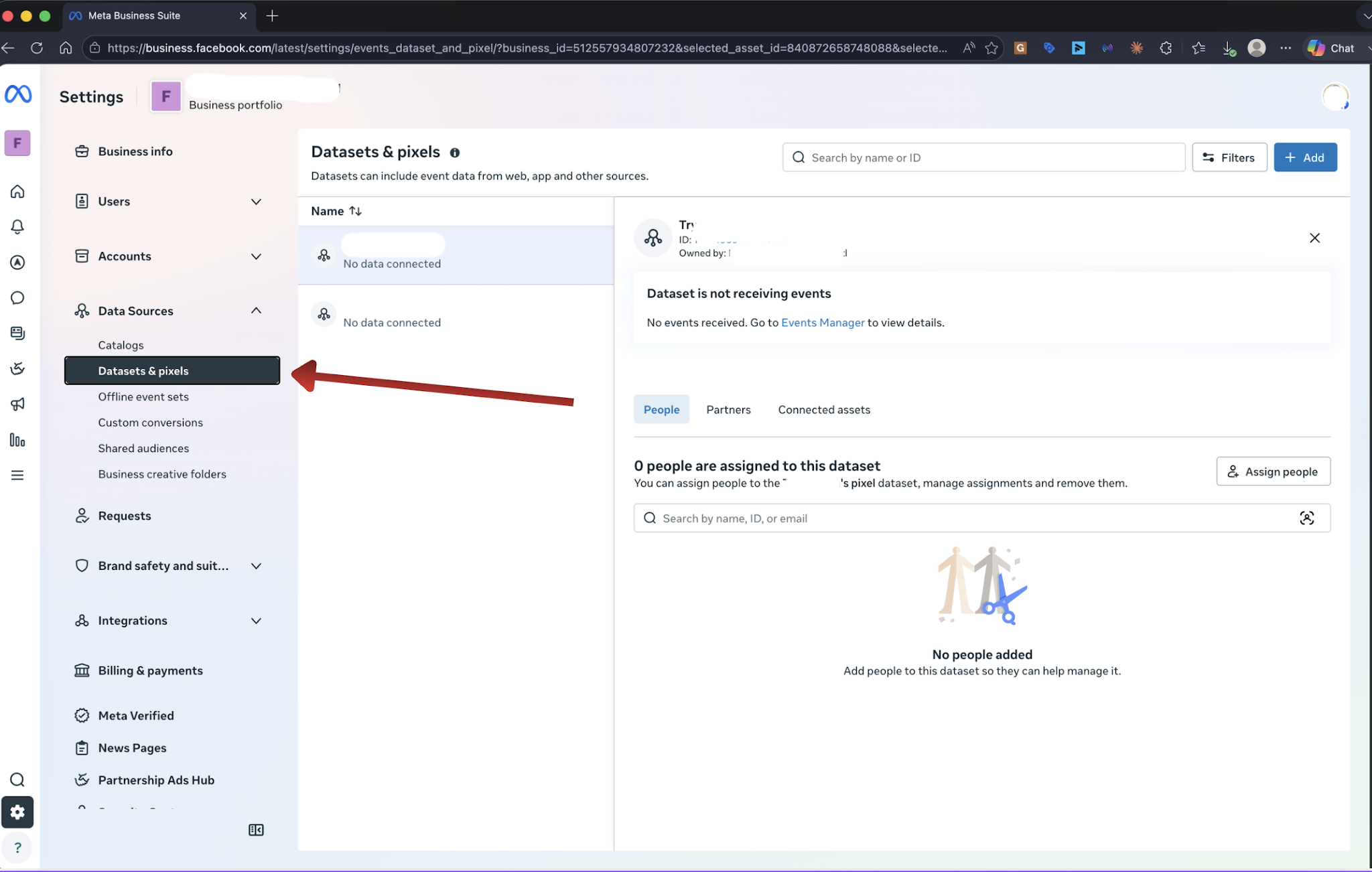
Share your Meta Pixel (aka Dataset):
- Click on “Datasets & pixels”
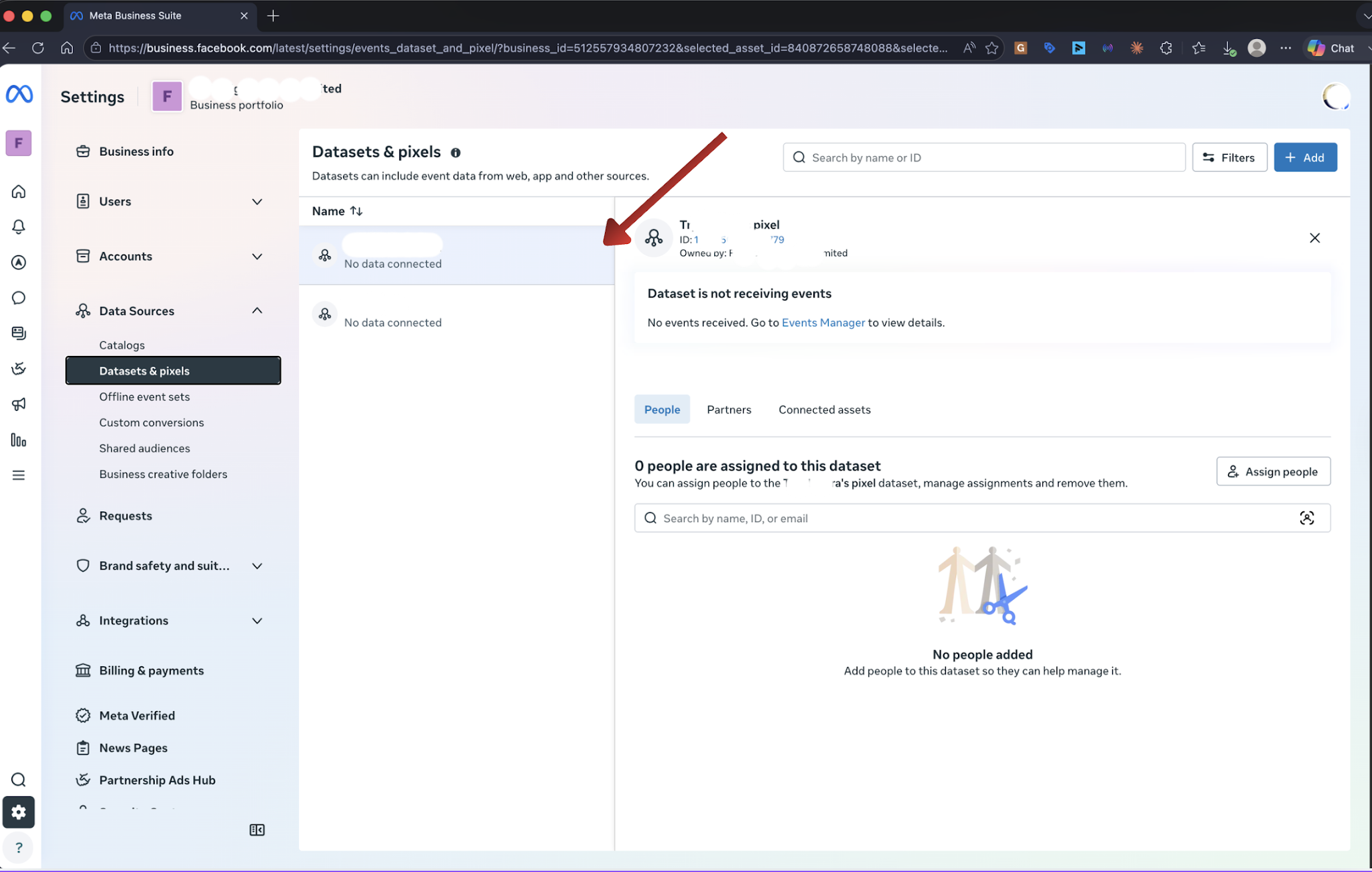
- Select the Pixel(s) you want StatBid to manage
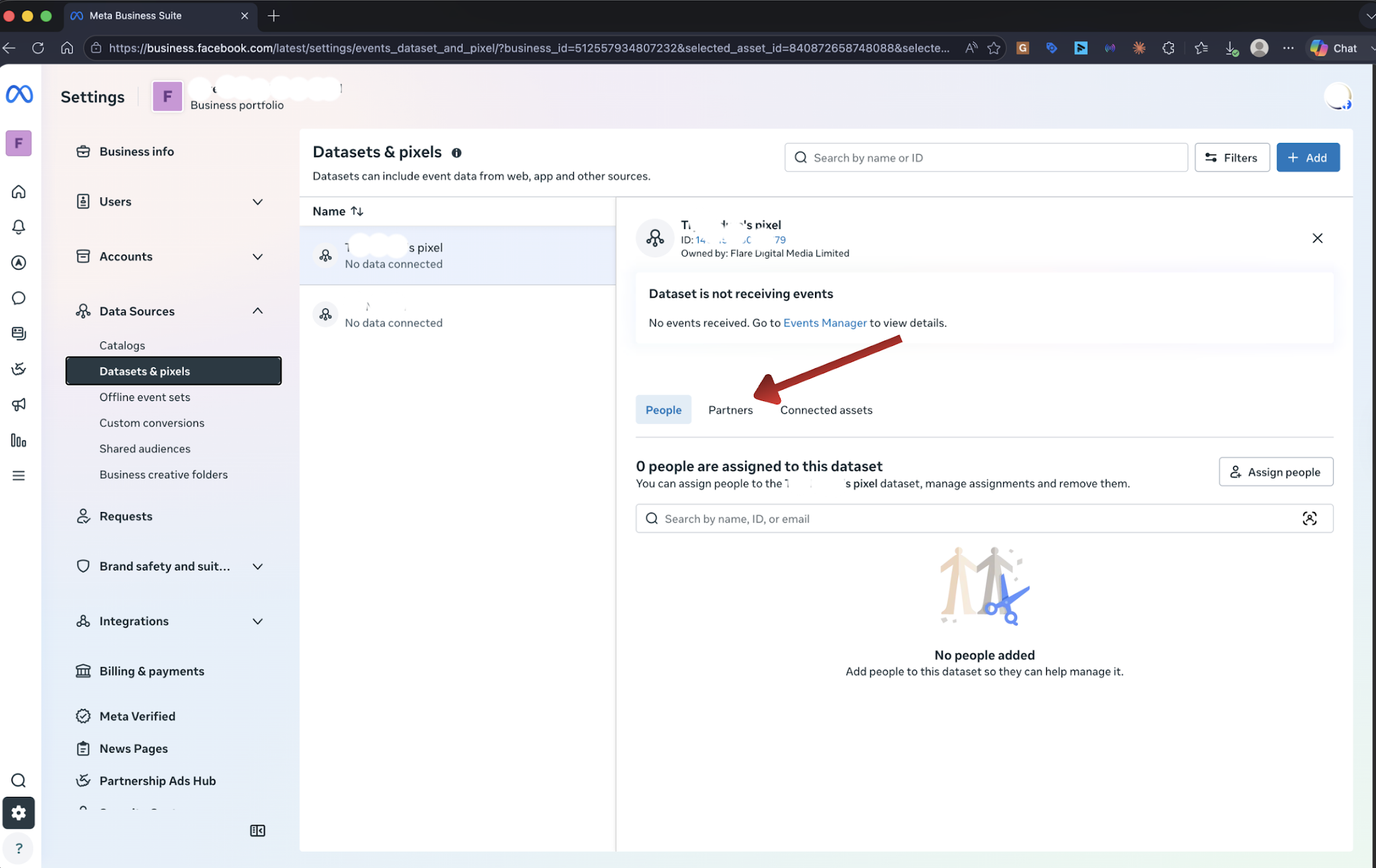
- Select the “Partners” tab
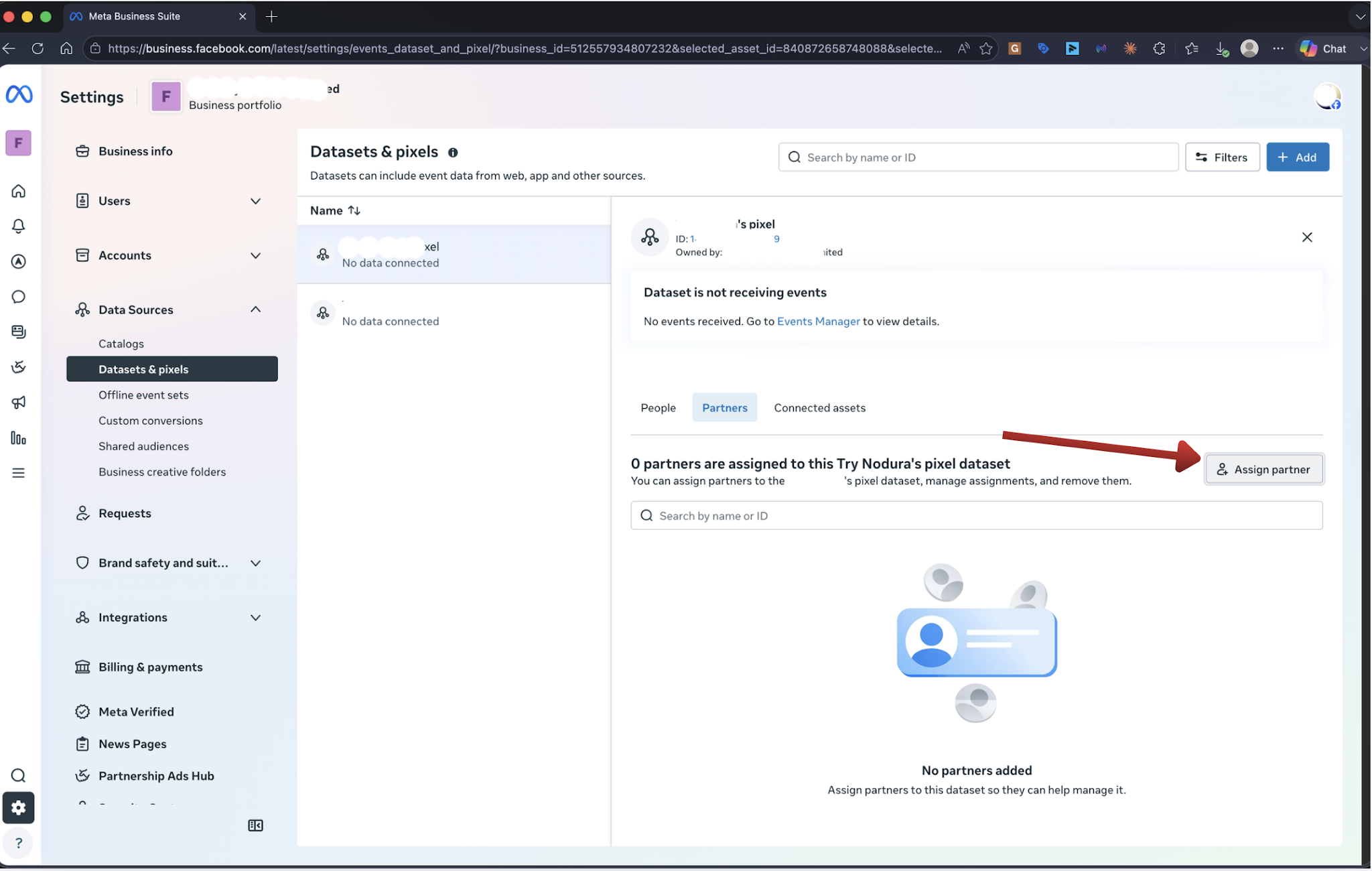
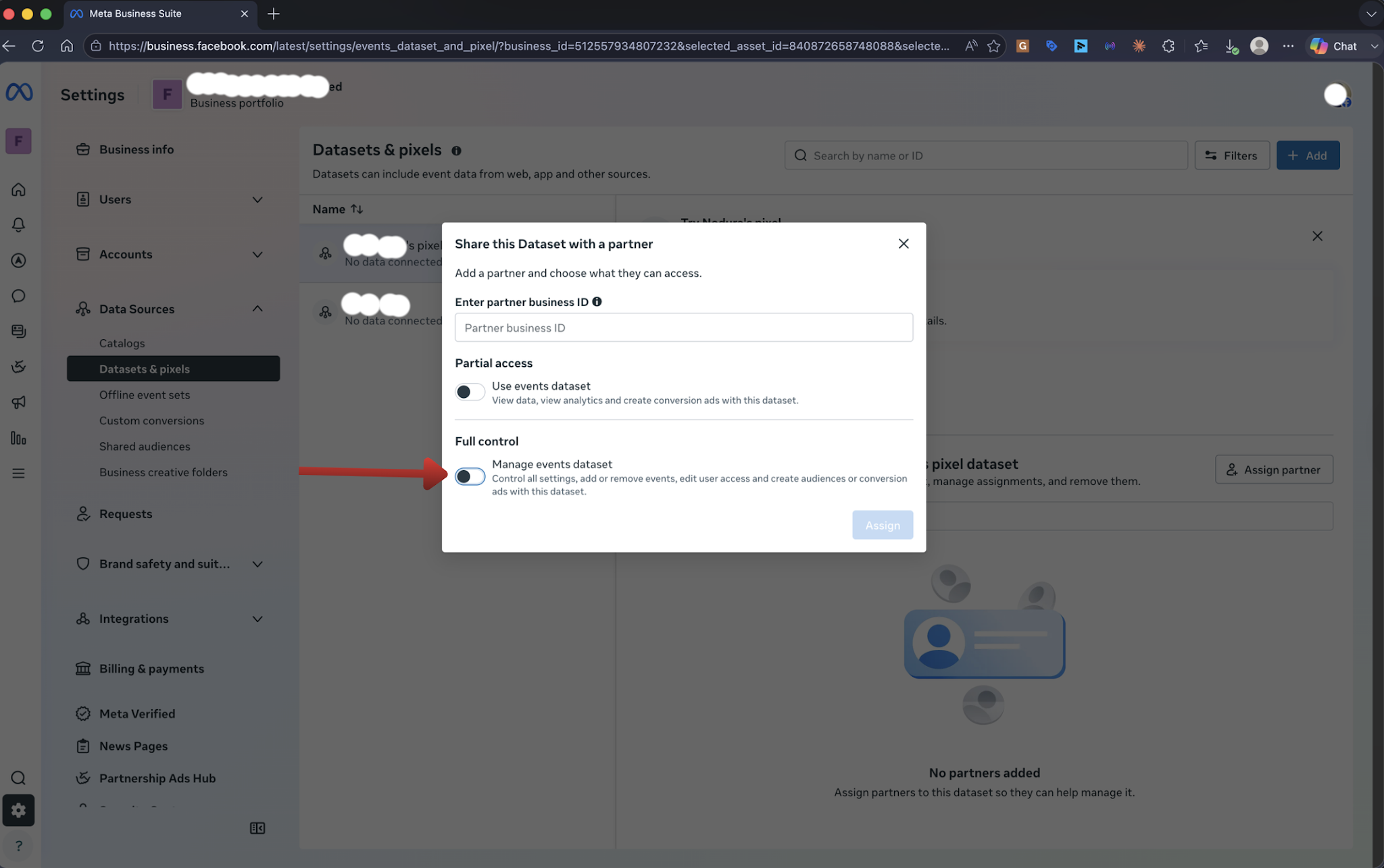
- Click “Assign partner”
- Enter the Business Manager ID provided by StatBid when prompted and toggle on “Manage events datasets,” and then, “Assign”
Notes:
- If you are unsure which Dataset (pixel) is active on your site, check the pixel ID with your Meta Pixel helper extension or share your website URL with your StatBid contact.
- If your Instagram account is connected to the Facebook page, it will typically be accessible through the Page connection.
- Meta frequently makes updates to the Business Suite/Portfolio. So, if the interface doesn’t match the steps in this guide, please email us at analytics@statbid.com.