← Back to Customer Resources
Google Tag Manager Access
You'll need Administrator access on the Google Tag Manager account to add new users. If you don't see these options, ask whoever manages your container to complete these steps.
STEP 1
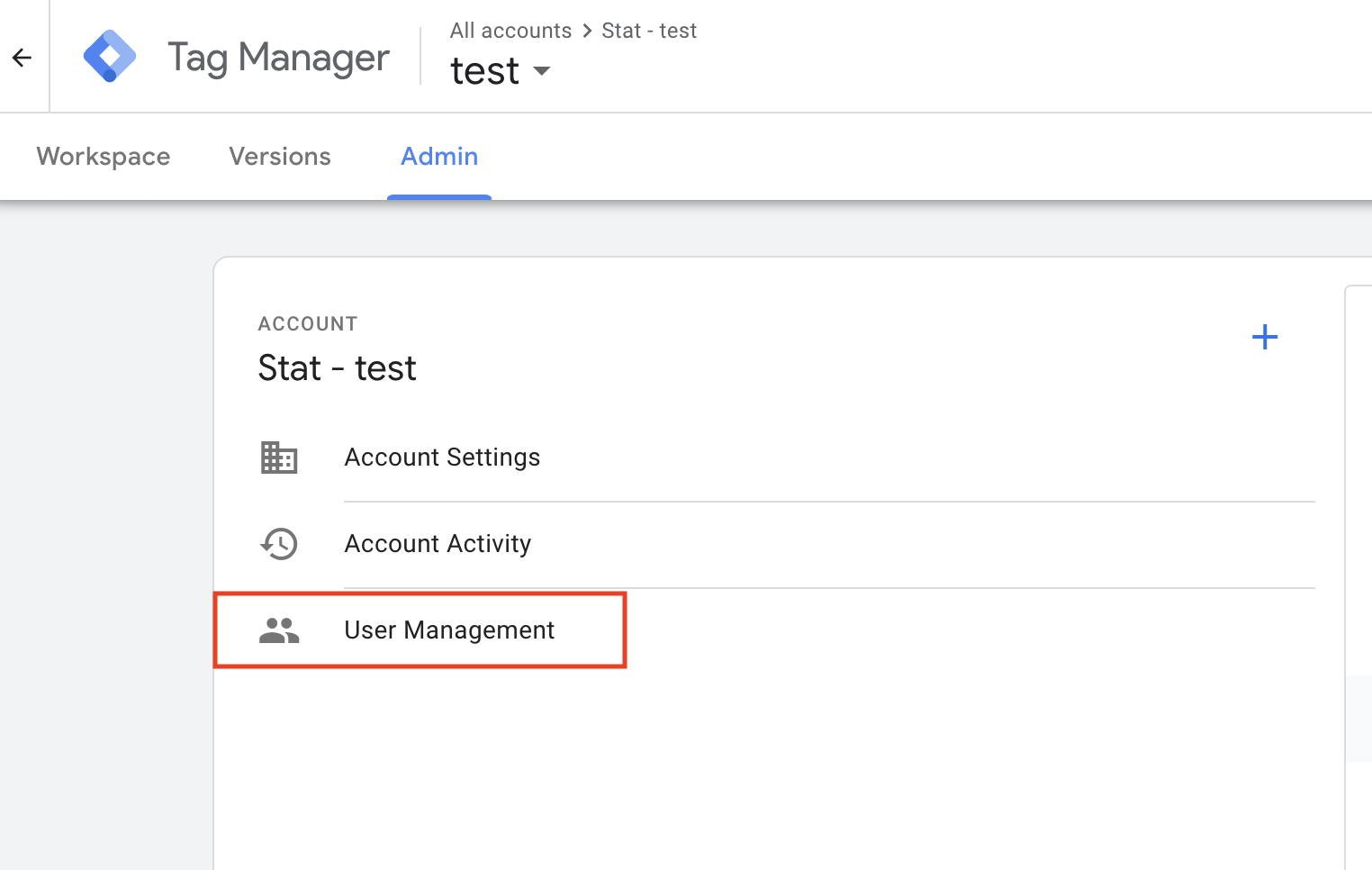
- Login to your Google Tag Manager account.
- Click on Admin.
- Under Admin, select User Management.
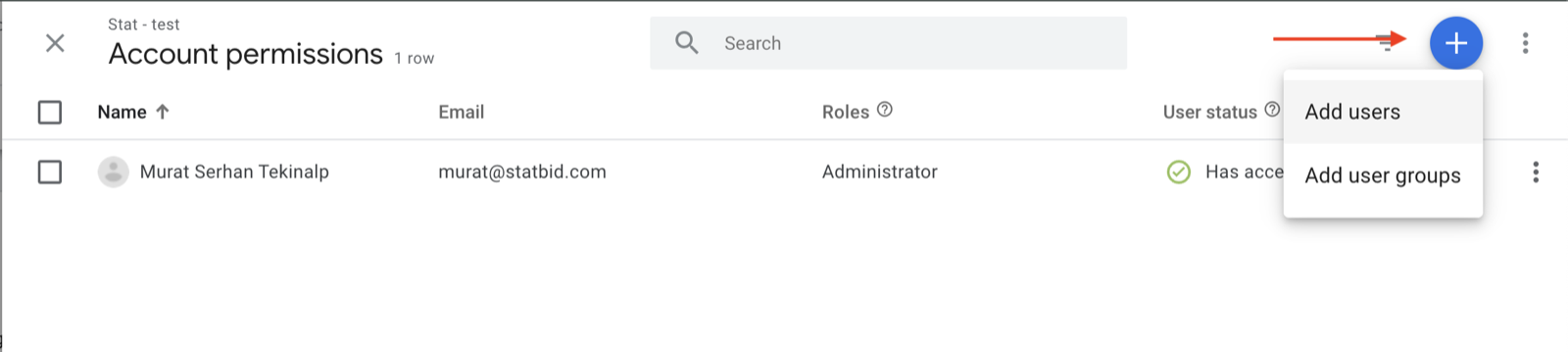
- To add a new user, click the + sign.
STEP 2
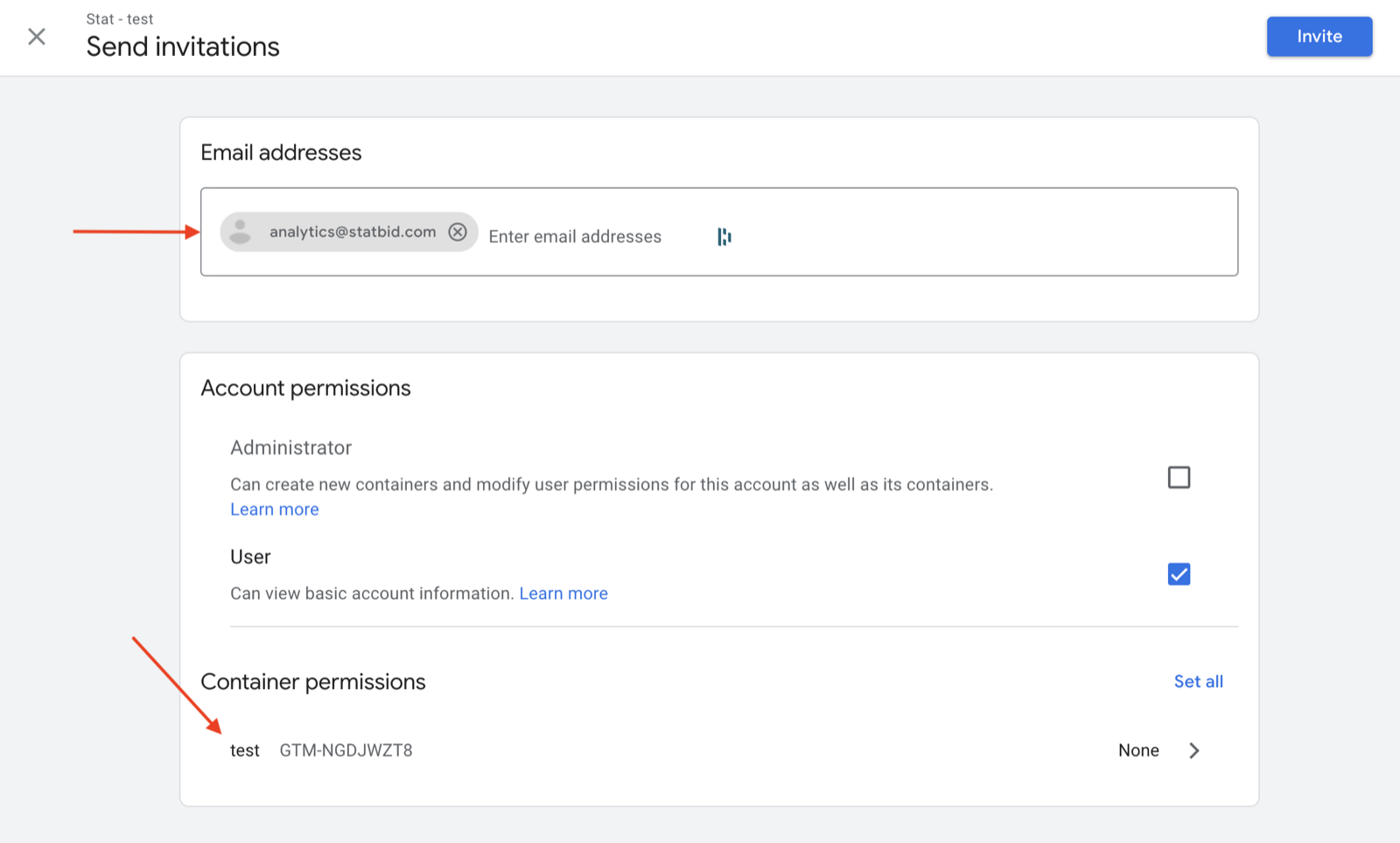
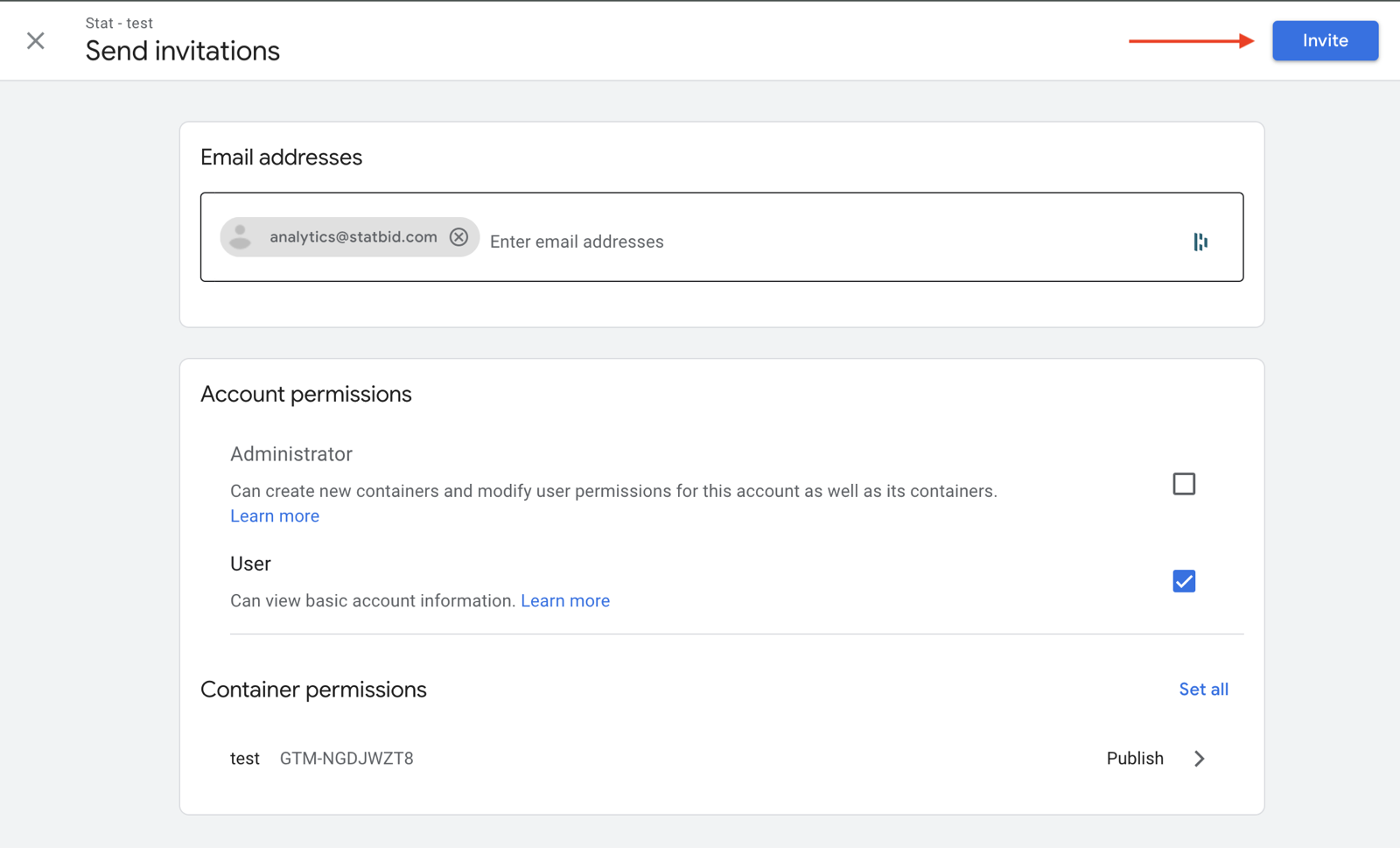
- Enter the email address analytics@statbid.com.
- Then click on the container to which you want to grant access.
STEP 3
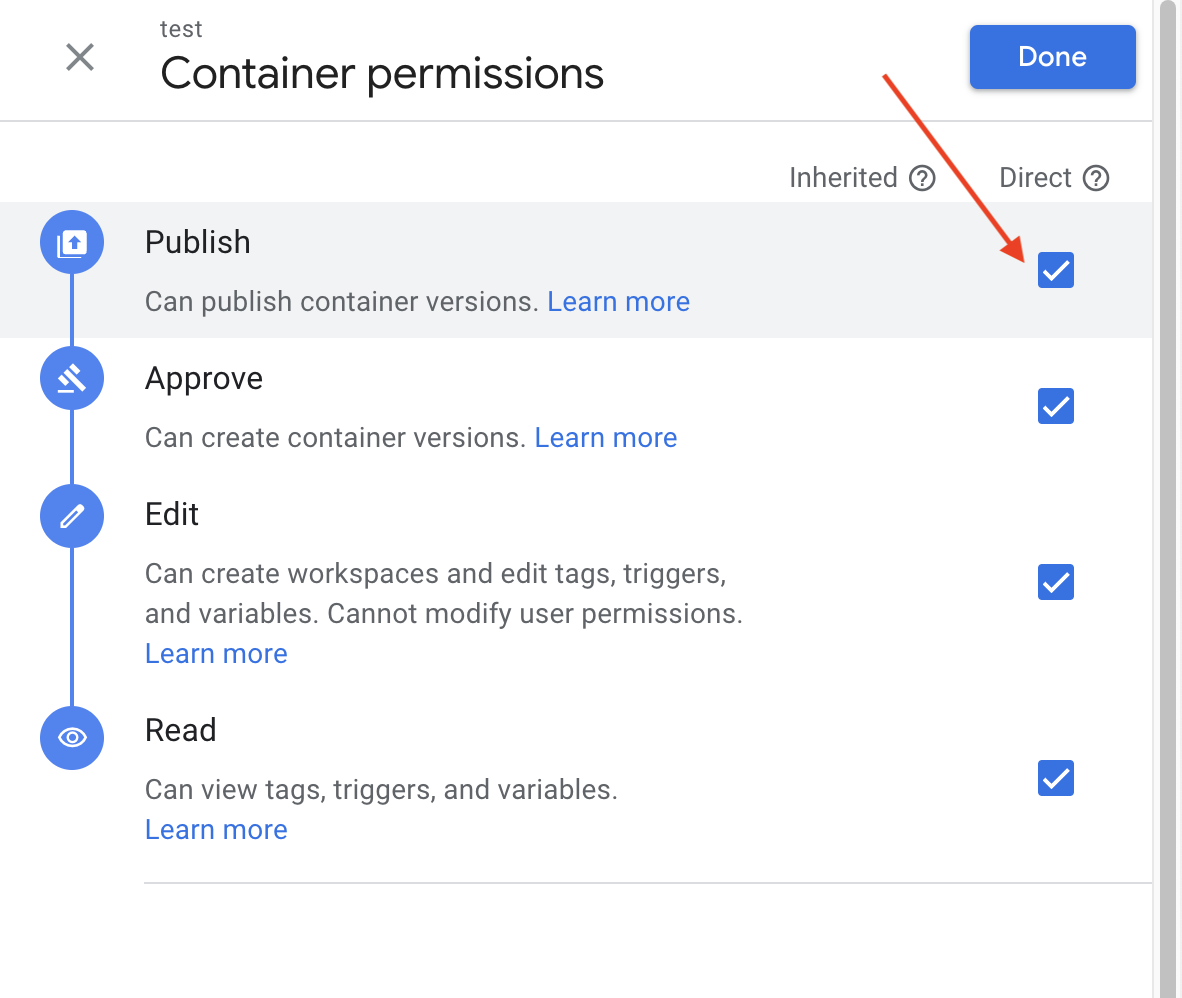
- Select the checkbox for Publish access. This will check all the other checkboxes.
- Publish access is needed so we can publish the changes we make.
- Then click Done.
STEP 4
- Finally, click Invite at the top right corner.
Questions? Reach out to your account manager, or email analytics@statbid.com.