← Back to Customer Resources

BigCommerce Access

You'll need Store Owner or Administrator access on your BigCommerce store to add new users. If you don't see these options, ask whoever manages your store to complete these steps.

STEP 1

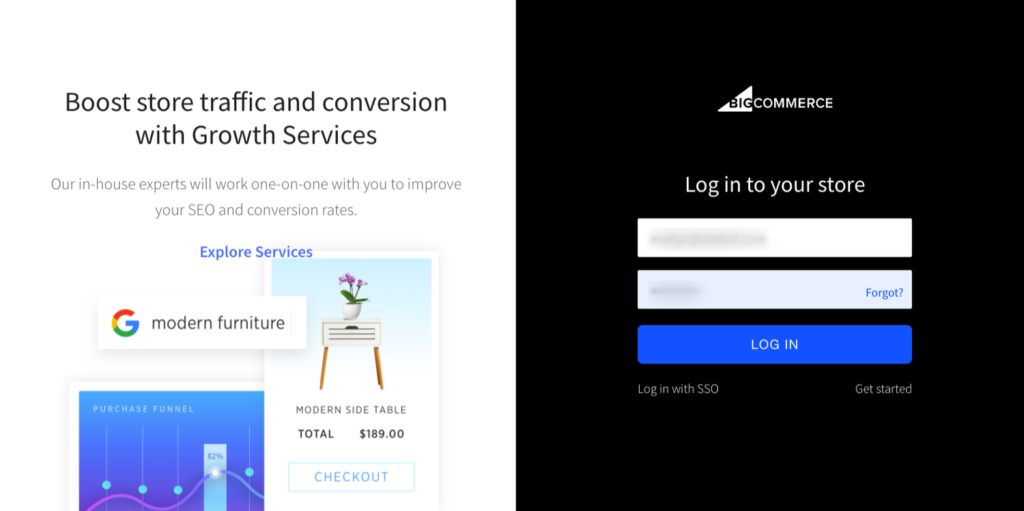
  • Sign in to your BigCommerce account.
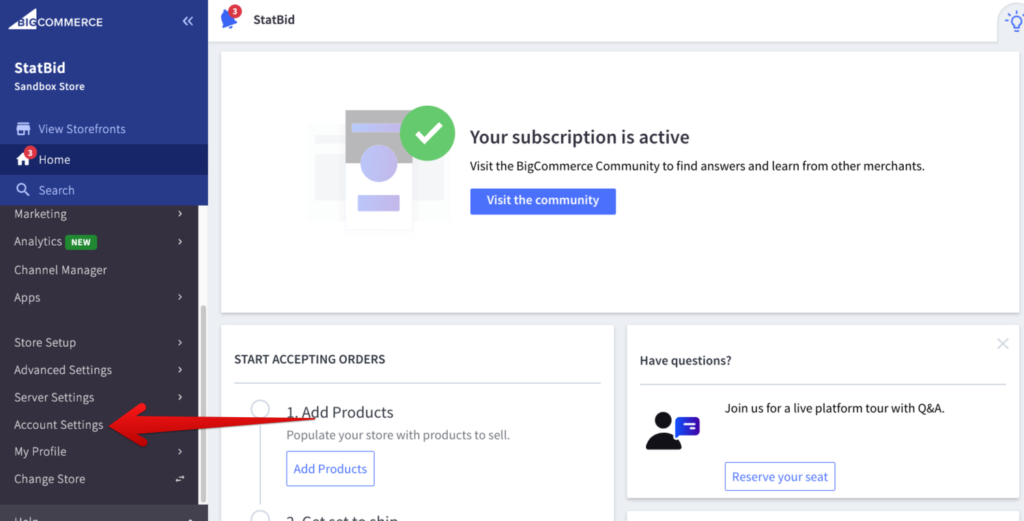
  • Click on Account Settings at the left of your screen, you may need to scroll down if it is not readily visible.
BigCommerce Log in to your store screen with the email, password and Log In fields for accessing your store account.

STEP 2

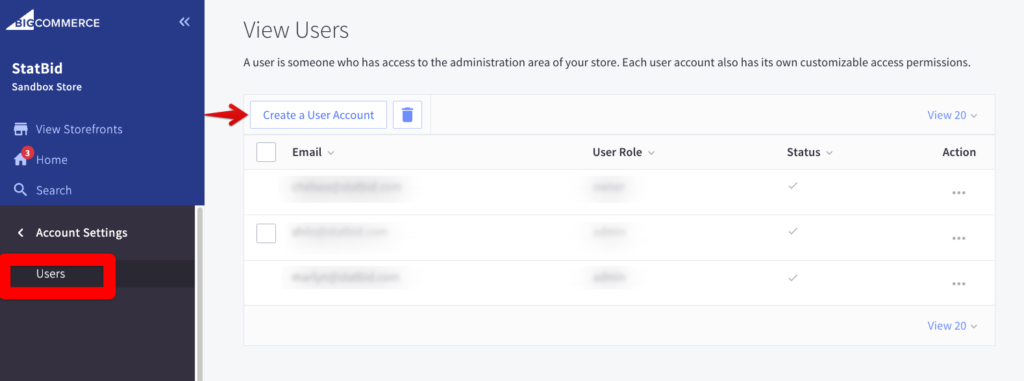
  • Select Users.
BigCommerce store dashboard with Account Settings highlighted in the left sidebar navigation.

STEP 3

  • Click on Create a User Account button and enter the name StatBid and email address analytics@statbid.com.
BigCommerce View Users screen with Users selected in the Account Settings sidebar and the Create a User Account button highlighted.

STEP 4

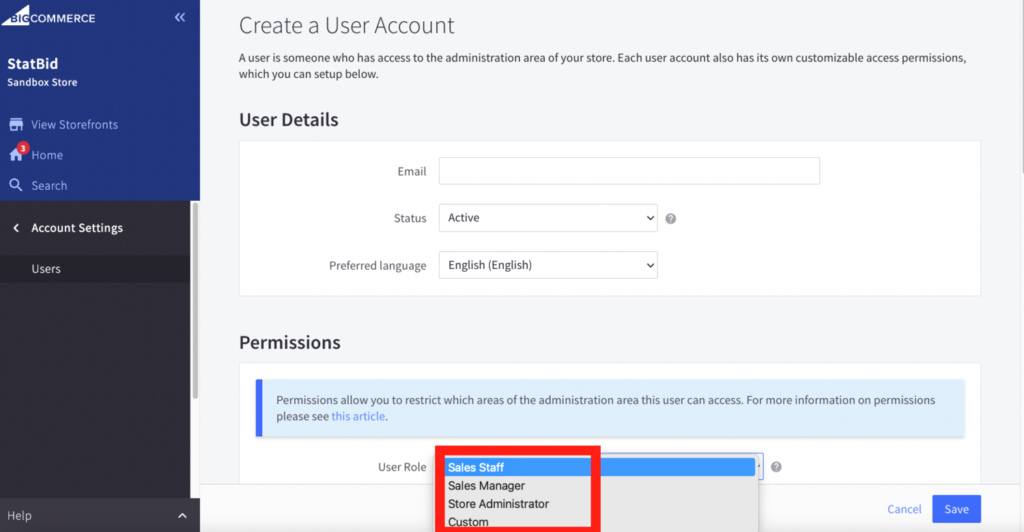
  • Under Permissions, select Sales Manager or Store Administrator for the User Role.
  • Click Save.
BigCommerce Create a User Account form with the User Role dropdown open under Permissions, showing Sales Manager and Store Administrator options.

Questions? Reach out to your account manager, or email analytics@statbid.com.